Collage Builder
Create Portfolio Collages That Don't Look Like Canva Templates
Canva is fine for flyers. But for headshot grids, comp cards, and team collages, photographers need something built for their actual workflow.
I get it — Canva is convenient. You open a browser tab, pick a template, drag in some photos, and you've got something that looks decent in about ten minutes. But "decent" has a ceiling, and if you've ever tried to make a corporate team grid or a modeling comp card in Canva, you've probably hit it.
The templates are designed to be generic enough for anyone — wedding planners, real estate agents, food bloggers. That's great for Canva's business, but it means your headshot collage ends up looking like every other collage on the internet. Same rounded corners, same pastel backgrounds, same clip-art-adjacent design language. Your photography deserves better framing than that.
What photographers actually need from a collage tool
When I'm making a collage, I'm usually doing one of three things: building a corporate team grid to deliver to a client, putting together a comp card for an actor or model, or creating a portfolio showcase for social media. Each of those has different requirements, but they all share the same core need — the photos should be the focus, not the design template surrounding them.
That means clean grids with consistent spacing. The ability to control the aspect ratio based on where the collage is going. Logo placement that doesn't look like an afterthought. And export options that don't destroy the image quality your clients are paying for.
How the Collage Builder works
The Collage Builder in StudioFlows starts with a blank canvas, not a template. You choose your grid size — rows and columns — and your aspect ratio. There are six presets: 1:1 (square), 4:5 (portrait), 9:16 (vertical/Stories), 16:9 (landscape), 3:2 (classic), and 4:3 (standard). Or you can set custom dimensions if you need something specific.
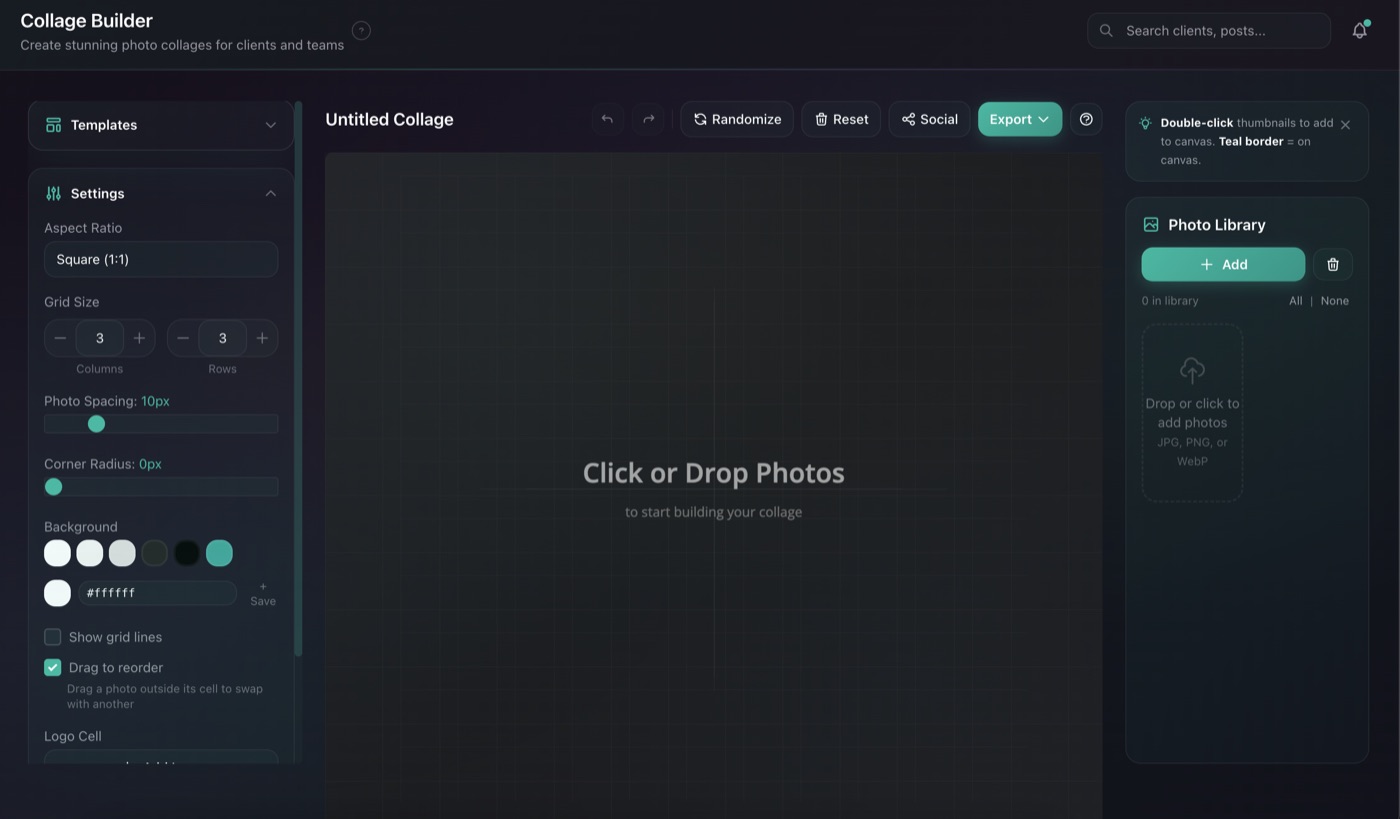
Drop your photos onto the canvas or into specific cells. You can drag between cells to rearrange, and there's a randomize button that shuffles the layout with one click — useful when you're exploring different compositions and don't want to manually swap everything around.
Corporate team grids
This is probably the most common use case I see. A company books you for team headshots — anywhere from 5 to 50 people — and afterward they want a clean grid for their website or lobby display. The Collage Builder handles any grid size, so whether it's a 3x3 executive team or a 6x8 department photo, you just set the rows and columns and drop in the images.
You can add the company logo in any corner, or give it more space with 2x1 or 2x2 cell sizing. Adjust the gap spacing and corner radius until it matches the client's brand aesthetic. The whole thing takes a few minutes instead of the 30+ minutes it would take in Photoshop to set up guides, align everything, and export at the right resolution.

Comp cards for actors and models
Comp cards have a specific layout that agents and casting directors expect. Typically a larger hero shot with three or four smaller shots below or to the side, plus the person's name and measurements. The Collage Builder has built-in comp card templates for this, and you can add text overlays with custom fonts, sizes, and colors for the talent's details.
Export without losing quality
This is where generic tools typically fall apart. You build a nice-looking collage, export it, and the quality drops. The Collage Builder exports as JPG, PNG, or PDF. For web and social media, the standard 1x export works well. For print — lobby displays, comp cards, marketing materials — you can export at 300 DPI for print-ready output. You choose the resolution at export time, so you're not locked into one or the other.
Save your work, come back later
One thing that used to frustrate me with browser-based tools was losing my work if I closed the tab or needed to wait for more photos from a shoot. The Collage Builder saves your project as a .studioflows file. You can close the browser, come back a week later, load the project, and pick up exactly where you left off. Useful for corporate shoots where you're delivering photos in batches.
Post it directly if you want
If you're making a portfolio collage for social media and you also use the StudioFlows Social Scheduler, you can send the finished collage directly to the scheduler to post across your connected platforms. It's not required — you can always just download the image and upload it wherever — but the integration is there if you want a one-stop workflow.
Start building collages
The Collage Builder is free for all StudioFlows accounts. No subscription required.
Create Free Account